FIX API Terminal can connect to an Interactive Brokers account through IB Gateway (or Trader Workstation). You install and log in to IB Gateway, note the API socket port and IP, then in FIX API Terminal open File → Add account, choose Interactive Brokers, and enter that same port and IP. This guide walks through the full setup.
Quick Answer: To add Interactive Brokers to FIX API Terminal, first install and log in to IB Gateway and enable its API in Configure → Settings → API → Settings, noting the Socket port (4002 for IB Gateway paper, 4001 for live). Then in FIX API Terminal open File → Add account, select Interactive Brokers, set Port IB Gateway to the same socket port and IP IB Gateway to 127.0.0.1 when running on the same computer, and save.
What You Need First
To connect Interactive Brokers to FIX API Terminal you need an Interactive Brokers account, the IB Gateway or Trader Workstation (TWS) application installed and running, and FIX API Terminal installed on the same Windows computer. The connection is made locally between FIX API Terminal and the IB Gateway socket, so IB Gateway must be logged in and open whenever you trade.
Note: Interactive Brokers exposes its account through the IB Gateway / TWS API socket. In FIX API Terminal you select Interactive Brokers as the account type and point the platform at that socket, rather than entering a separate FIX session login.
Step 1 — Install and Set Up IB Gateway
Download and install IB Gateway from Interactive Brokers, then log in with your IBKR credentials. Interactive Brokers publishes a step-by-step install and setup walkthrough in its IB Gateway install and setup guide. You can use either the live or the paper (simulated) login, depending on whether you want to test the connection first.
Step 2 — Enable the API and Note the Socket Port
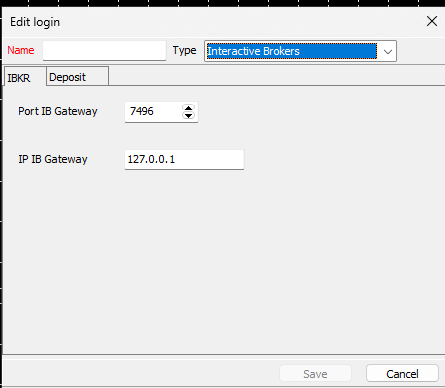
In IB Gateway (or TWS), open Configure → Settings → API → Settings and confirm the API is enabled. Two values matter here:
The Socket port is the number FIX API Terminal connects to. Write it down exactly as shown. The default depends on the application and whether you are on a live or paper account, as shown in the table below.
The Read-Only API checkbox controls whether orders can be placed. If you intend to trade through FIX API Terminal, make sure Read-Only API is unchecked. Leave it checked only if you want a view-only connection.
If you are using TWS rather than IB Gateway, also enable Enable ActiveX and Socket Clients. Adding 127.0.0.1 to the list of Trusted IPs avoids repeated connection prompts when the platform runs on the same computer. Click Apply and then OK.
Default API Socket Ports
| Application | Account mode | Default socket port |
|---|---|---|
| IB Gateway | Live | 4001 |
| IB Gateway | Paper (simulated) | 4002 |
| Trader Workstation (TWS) | Live | 7496 |
| Trader Workstation (TWS) | Paper (simulated) | 7497 |
These are the Interactive Brokers defaults. If the Socket port in your API Settings shows a different number, use the number you actually see there — the value in FIX API Terminal must match it exactly.
Step 3 — Open Add Account in FIX API Terminal
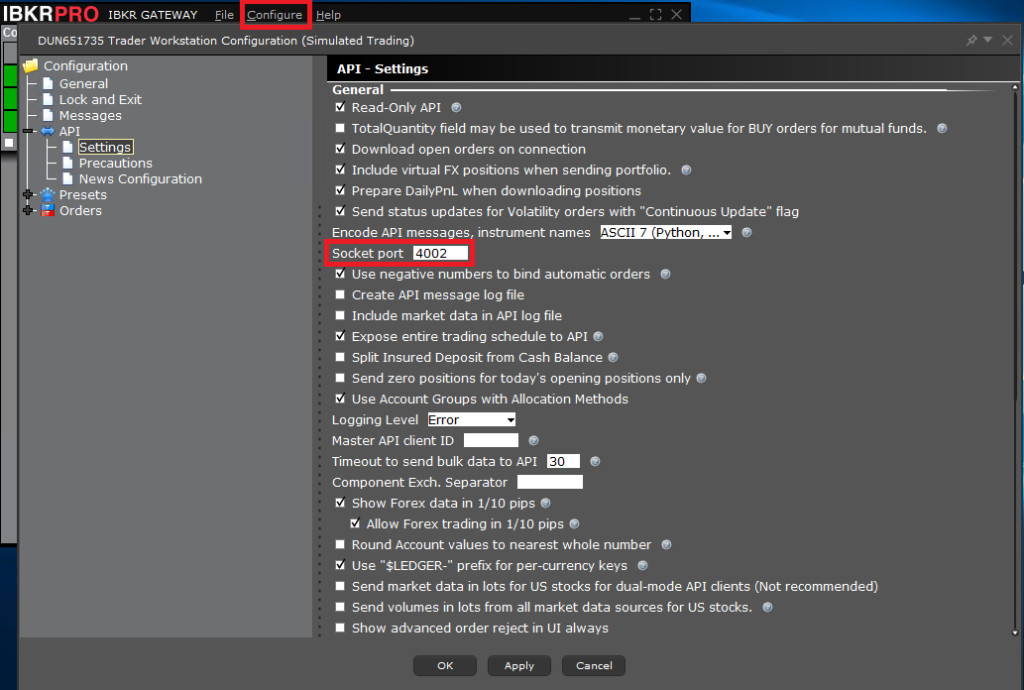
In FIX API Terminal, open the File menu and choose Add account. In the Edit login window, set Type to Interactive Brokers. The form then shows the two connection fields used for an Interactive Brokers account: Port IB Gateway and IP IB Gateway.
Step 4 — Enter the Port and IP
Fill in the Interactive Brokers account fields as follows:
| Field | What to enter |
|---|---|
| Name | Any label that helps you recognise the account, for example IBKR Paper or IBKR Live. |
| Port IB Gateway | The exact Socket port from Step 2 (for example 4002 for IB Gateway paper, 4001 for live, or 7496/7497 for TWS). |
| IP IB Gateway | 127.0.0.1 when IB Gateway runs on the same computer as FIX API Terminal. Use the gateway machine’s IP address only if it runs on a different computer on your network. |
Click Save. The most common setup mistake is a mismatched port: if the number in FIX API Terminal does not match the Socket port in IB Gateway, the connection will not open.
Step 5 — Connect and Confirm
Make sure IB Gateway is logged in and running, then connect the account in FIX API Terminal. When the link is established, account and market data from Interactive Brokers become available in the platform. If IB Gateway is closed or logged out, the connection drops, so keep it open during trading sessions.
Why Use IB Gateway Instead of TWS
Both IB Gateway and Trader Workstation expose the same API socket, so either can be used with FIX API Terminal. IB Gateway is a lighter application built specifically for API connections, which is why many traders prefer it for an always-on connection. TWS includes the full charting and manual-trading interface and uses different default ports (7496 and 7497). Choose whichever you keep running, and set the matching port in FIX API Terminal.
Troubleshooting
If the account will not connect, check the most frequent causes first: the port in FIX API Terminal does not match the Socket port in IB Gateway; IB Gateway is not logged in or has been closed; the API is not enabled in Configure → Settings → API → Settings; or 127.0.0.1 is not listed as a Trusted IP and a connection prompt in IB Gateway is waiting to be accepted. If you can connect but cannot place orders, confirm that Read-Only API is unchecked.
Frequently Asked Questions
How do I add an Interactive Brokers account to FIX API Terminal?
Open File → Add account, set Type to Interactive Brokers, enter the IB Gateway Socket port in Port IB Gateway and 127.0.0.1 in IP IB Gateway (when running locally), and save. IB Gateway must be installed, logged in, and have its API enabled.
What port should I use for Interactive Brokers in FIX API Terminal?
Use the Socket port shown in IB Gateway or TWS under Configure → Settings → API → Settings. Interactive Brokers defaults are 4001 (IB Gateway live), 4002 (IB Gateway paper), 7496 (TWS live), and 7497 (TWS paper). The value in FIX API Terminal must match it exactly.
What IP address should I enter for IB Gateway?
Enter 127.0.0.1 when IB Gateway runs on the same computer as FIX API Terminal. Use the gateway computer’s network IP address only if IB Gateway runs on a different machine.
Do I need IB Gateway running to trade?
Yes. FIX API Terminal connects to the IB Gateway (or TWS) API socket, so the gateway must be installed, logged in, and open during your session. If it closes or logs out, the connection drops.
Why can I connect but not place orders?
The most likely cause is that Read-Only API is enabled in the IB Gateway API Settings. Uncheck Read-Only API, apply the change, and reconnect to allow order placement.
Can I test the Interactive Brokers connection before trading live?
Yes. Log in to IB Gateway with a paper (simulated) account and use the corresponding paper port (4002 for IB Gateway). This lets you confirm the connection and order behaviour before switching to the live login and live port.
Conclusion
Connecting Interactive Brokers to FIX API Terminal comes down to matching one number. Install and log in to IB Gateway, enable the API and note its Socket port, then add the account in FIX API Terminal under File → Add account with Type set to Interactive Brokers, the same port, and IP 127.0.0.1. Once the ports match and IB Gateway is running, the account connects and is ready to use.
Download the free FIX API trading platform See supported FIX API brokers